Cline is an AI-powered coding assistant. This tutorial demonstrates how to configure Cline to use models provided by Serverless Inference. The Cline agent is available as a command line tool or as an integration with many IDEs. This page will show configuration with the Cline CLI and with Cline as a Visual Studio Code extension, but configuration in other IDEs should be similar.Documentation Index
Fetch the complete documentation index at: https://wb-21fd5541-john-wbdocs-2044-rename-serverless-products.mintlify.app/llms.txt
Use this file to discover all available pages before exploring further.
Prerequisites
You will need your W&B API key.Set up Cline in the command line
Install the Cline CLI.2.5.1. You can run cline version to verify what you have installed.
Run the following command, substituting <your_api_key> with your W&B API key.
Set up Cline in Visual Studio Code
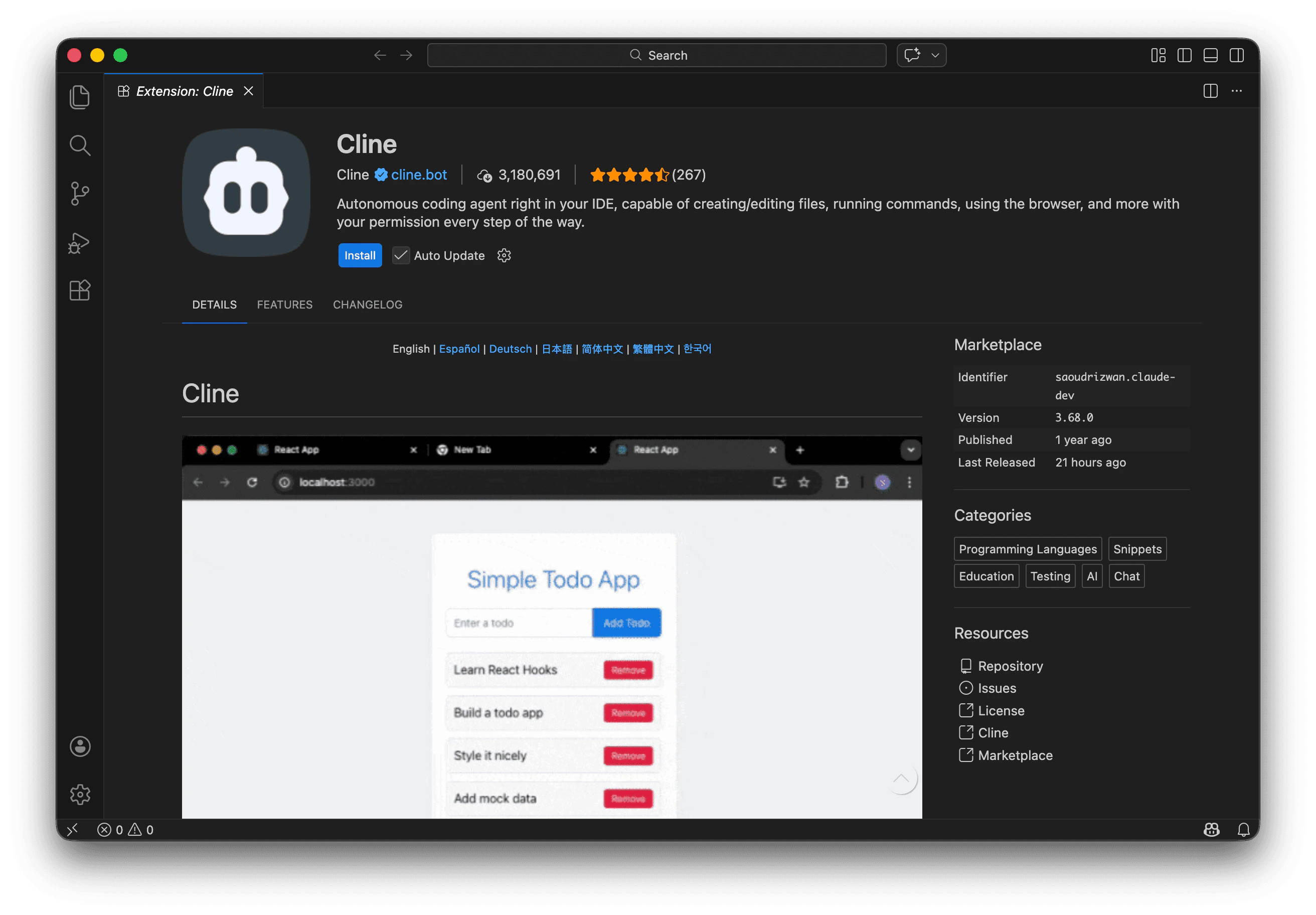
You can also install Cline as a Visual Studio Code extension. Search for Cline in the VS Code Extensions Marketplace, or install it from the Visual Studio Code Marketplace. Click theInstall button.

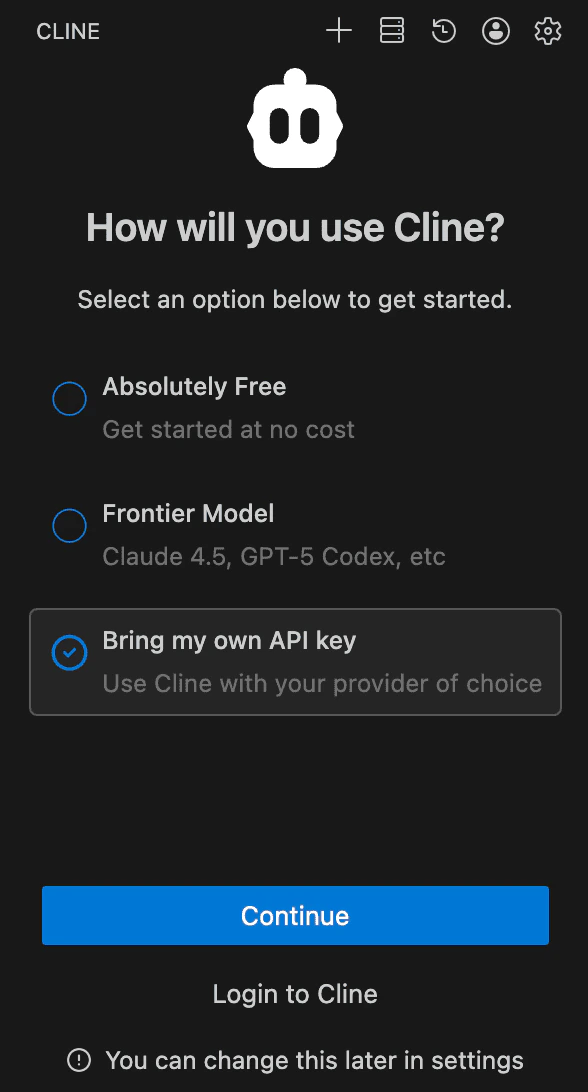
<your_api_key> with your W&B API key:
| Setting | Value |
|---|---|
| API Provider | OpenAI Compatible |
| Base URL | https://api.inference.wandb.ai/v1 |
| OpenAI Compatible API Key | <your_api_key> |
| Model ID | moonshotai/Kimi-K2.5 |
Continue button.
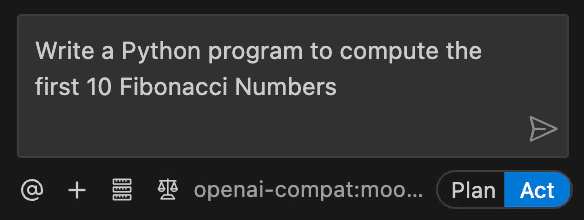
Try submitting a prompt like “Write a Python program to compute the first 10 Fibonacci Numbers”.