

Use the interactive Queue monitoring dashboard to view when a launch queue is in heavy use or idle, visualize workloads that are running, and spot inefficient jobs. The launch queue dashboard is especially useful for deciding whether or not you are effectively using your compute hardware or cloud resources. For deeper analysis, the page links to the W&B experiment tracking workspace and to external infrastructure monitoring providers like Datadog, NVIDIA Base Command, or cloud consoles.Documentation Index
Fetch the complete documentation index at: https://wb-21fd5541-john-wbdocs-2044-rename-serverless-products.mintlify.app/llms.txt
Use this file to discover all available pages before exploring further.
Queue monitoring dashboards are currently available only in the W&B Multi-tenant Cloud deployment option.
Dashboard and plots
Use the Monitor tab to view the activity of a queue that occurred during the last seven days. Use the left panel to control time ranges, grouping, and filters. The dashboard contains a number of plots answering common questions about performance and efficiency. The following sections describe UI elements of queue dashboards.Job status
The Job status plot shows how many jobs are running, pending, queued, or completed in each time interval. Use the Job status plot for identifying periods of idleness in the queue.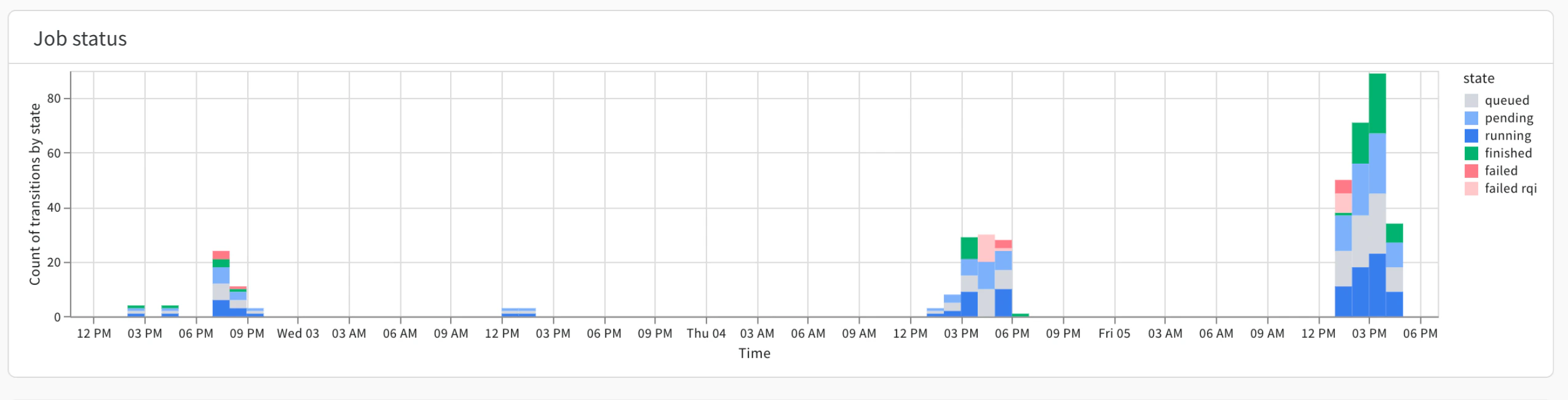
Queued items might indicate opportunities to shift workloads to other queues. A spike in failures can identify users who might need help with their launch job setup.Queued time
The Queued time plots shows the amount of time (in seconds) that a launch job was on a queue for a given date or time range.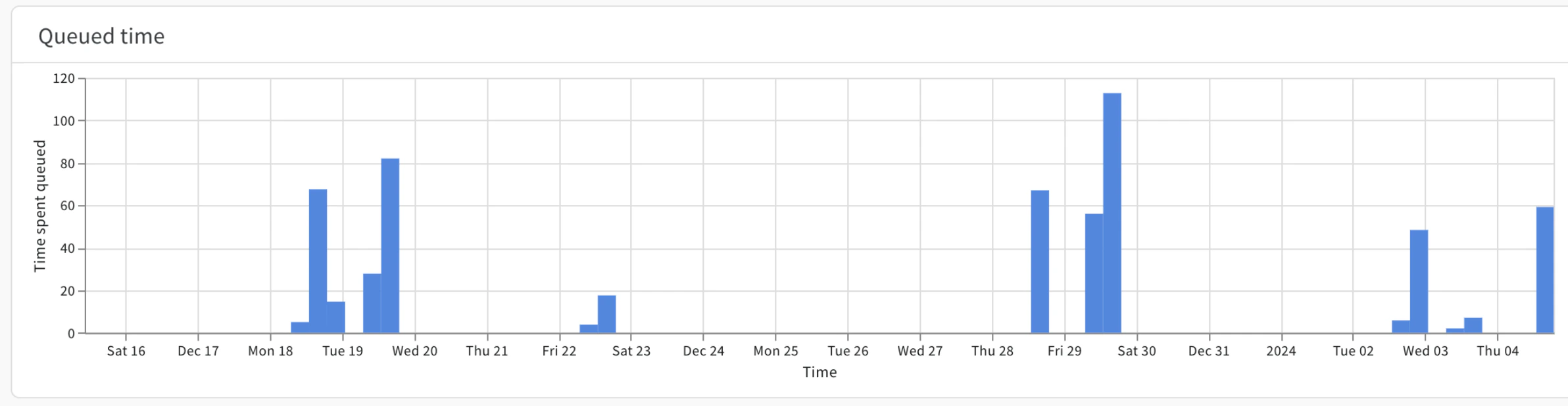
Use the Queued time plot to identify users affected by long queue times.
Grouping control in the left bar.
which can be particularly helpful for identifying which users and jobs are feeling the pain of scarce queue capacity.
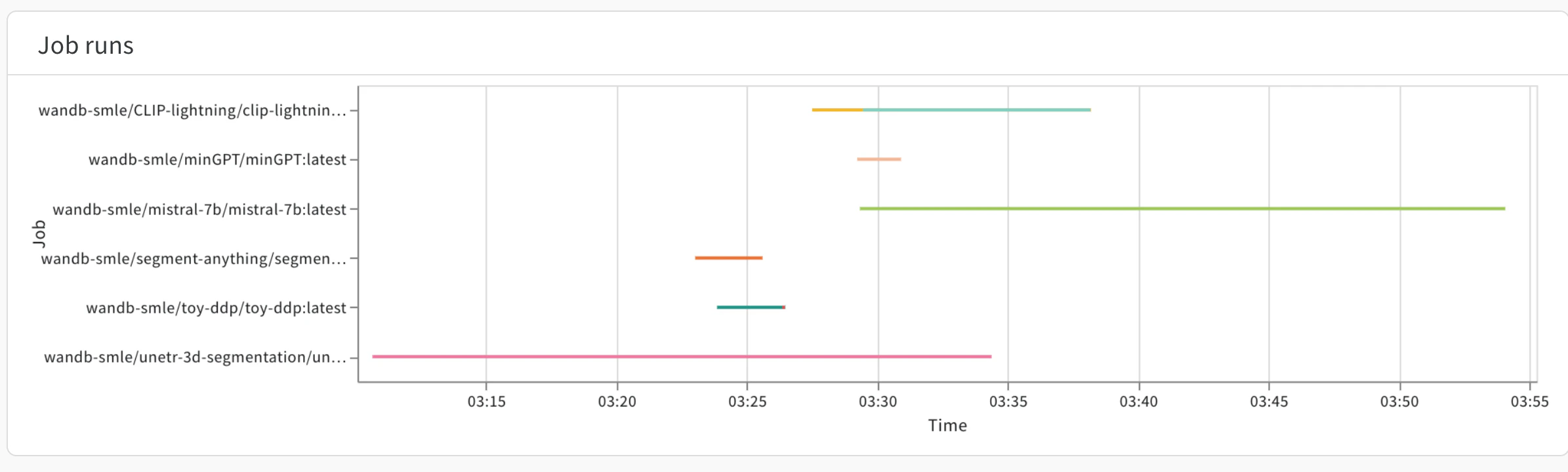
Job runs
CPU and GPU usage
Use the GPU use by a job, CPU use by a job, GPU memory by job, and System memory by job to view the efficiency of your launch jobs.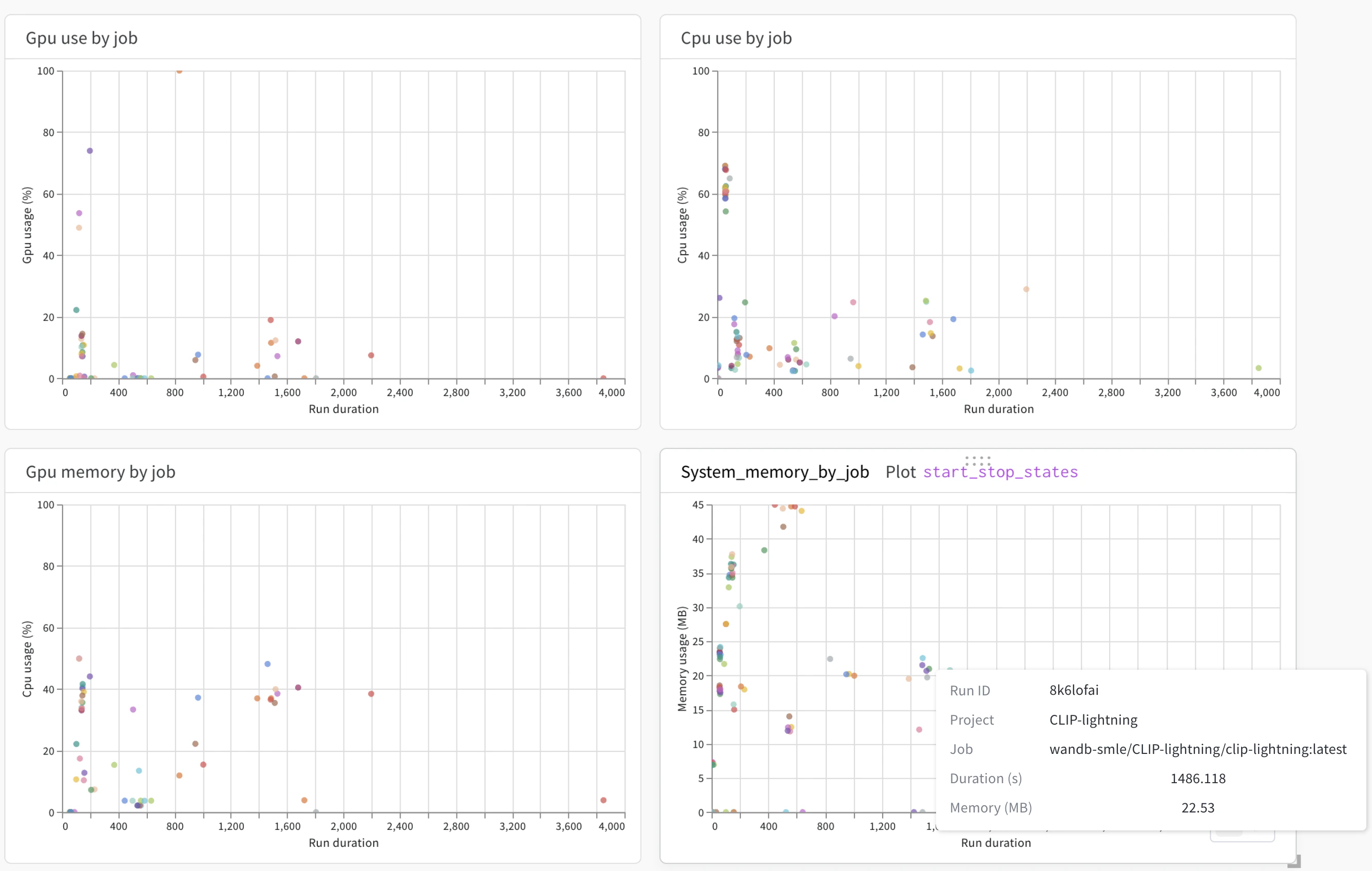
Errors
The Errors panel shows errors that occurred on a given launch queue. More specifically, the Errors panel shows a timestamp of when the error occurred, the name of the launch job where the error comes from, and the error message that was created. By default, errors are ordered from latest to oldest.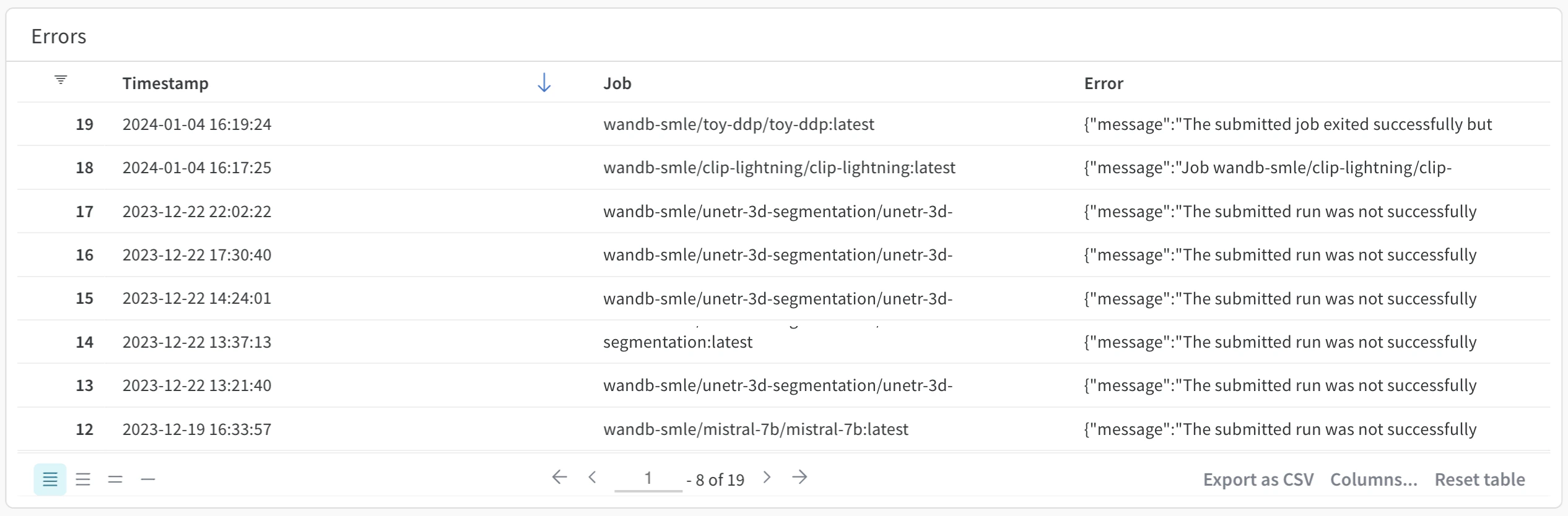
External links
The queue observability dashboard’s view is consistent across all queue types, but in many cases, it can be useful to jump directly into environment-specific monitors. To accomplish this, add a link from the console directly from the queue observability dashboard. At the bottom of the page, clickManage Links to open a panel. Add the full URL of the page you want. Next, add a label. Links that you add appear in the External Links section.